You can print a large poster from a PDF with an ordinary home or school printer. The key is knowing whether your file is already divided into printable pages or whether one large PDF page needs to be tiled across several sheets.
Before you print the PDF
Download the PDF to your computer instead of printing from a browser preview. Open it in Adobe Acrobat Reader or another trusted PDF reader, check the total number of pages, and look for a printing guide or numbered poster pieces. Confirm whether the file was designed for US Letter paper, A4 paper, or a large-format printer before changing any settings.
- Save the PDF locally before opening it.
- Check the paper size listed in the product instructions.
- Print one test sheet before printing the entire poster.
First, identify which type of poster PDF you have
An already-tiled poster contains many normal-size pages—often 9, 16, 25, or more sheets. These pages are ready to print at 100% and should not be tiled again. A single-page poster PDF contains one large design. To print that design on a regular printer, use Adobe Acrobat Reader’s Poster option so the page is automatically divided across multiple sheets.
How to print an already-tiled poster PDF
Open the PDF, choose File and then Print, and select the student or poster pages you need. Under sizing, choose Actual Size or set Custom Scale to 100%. Select the exact paper size named in the file, keep the pages single-sided, and use Auto orientation unless the instructions specify portrait or landscape. Review the preview carefully: every page should have the same margins and scale.
- Do not choose Poster mode for a PDF that is already divided into 25 pages.
- Turn off Fit, Shrink Oversized Pages, and borderless scaling when alignment matters.
- Use grayscale or black-and-white mode for classroom coloring pages.
How to tile one PDF page across multiple sheets
Open the single-page PDF in the free desktop version of Adobe Acrobat Reader. Choose File, Print, and then Poster under Page Sizing & Handling. Start with a Tile Scale of 100%. Add about 0.25 inch (6 mm) of overlap so neighboring sheets are easier to align. Turn on Cut Marks if you want trimming guides, and use Labels when the page order is not obvious. The preview shows exactly how many sheets the poster will use before you print.
- Increase Tile Scale to make the final poster larger.
- Reduce Tile Scale if the poster must fit a smaller wall.
- Keep the same scale for every sheet in the print job.
Choose the best paper and printer settings
Regular 20 lb or 75–80 gsm copy paper works well for crayons and colored pencils. Use slightly heavier paper if students will use markers or if you want a sturdier display. Choose Standard or Normal print quality for classroom coloring pages, and select High quality only when the design contains small details. Always print single-sided so the reverse stays clean for taping and page numbers remain easy to read.
Trim and assemble the printed poster
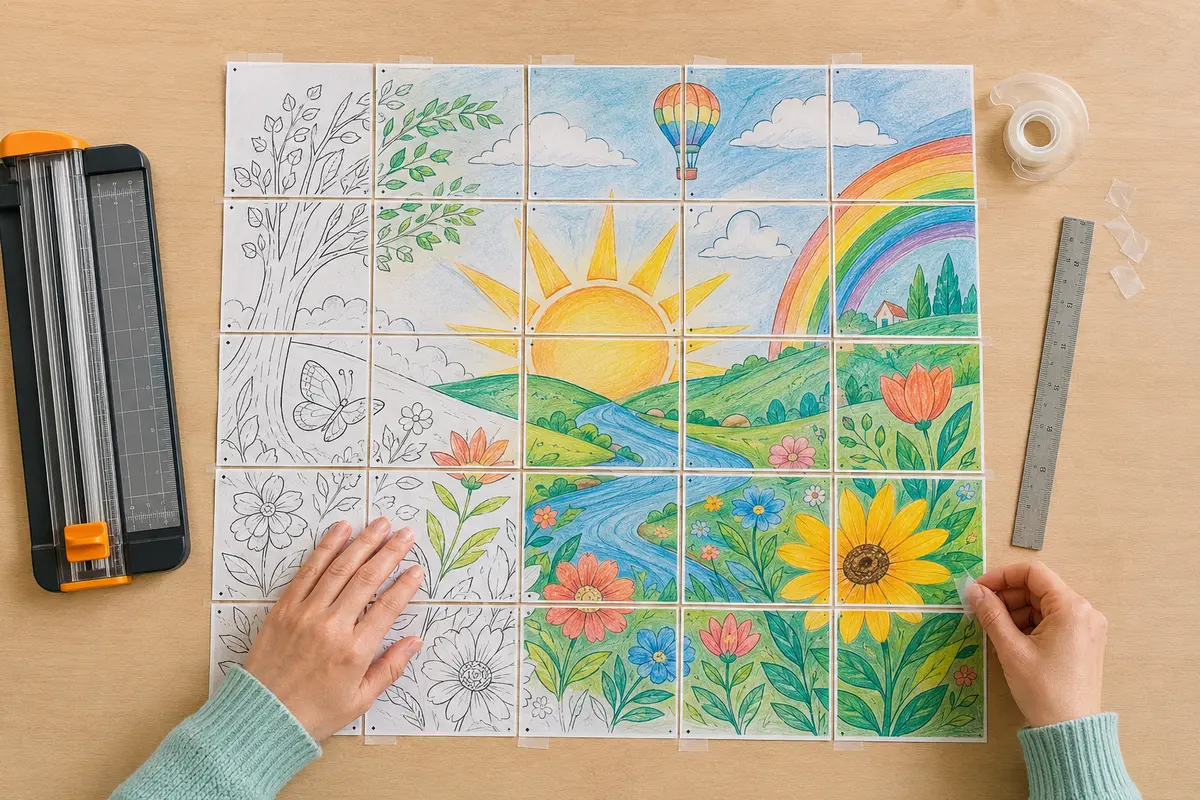
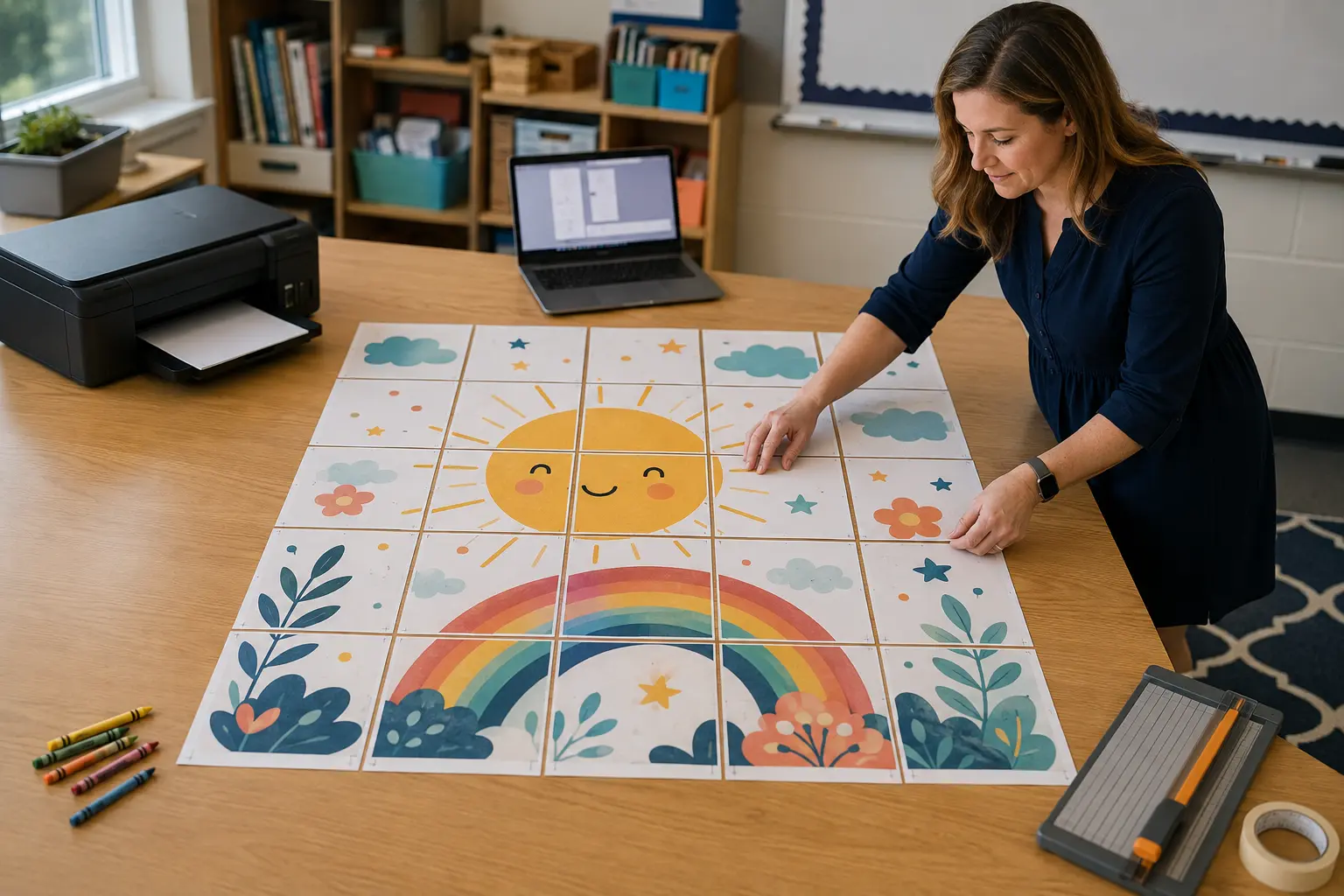
Lay every sheet on a clean floor or large table before cutting or taping. Follow the page numbers and build the poster from left to right, one row at a time. If the file includes overlap, trim only one of the two overlapping edges, align the artwork, and tape the seam from the back. For a 5 × 5 collaborative poster printed on US Letter paper, the untrimmed layout can reach approximately 42.5 × 55 inches (108 × 140 cm), although margins and overlap may reduce the finished size.
- Arrange all sheets before attaching anything.
- Use removable tape for the first alignment check.
- Mount the finished rows on bulletin-board paper for extra support.
Fix common PDF poster printing problems
If the poster prints too small, check that Actual Size or 100% is selected instead of Fit. If lines do not align, confirm that every sheet used the same paper size, scale, and orientation. If part of the design is missing, review the page range and the tiled preview. If the printer clips the outer edge, use the overlap area or reduce the Tile Scale slightly rather than changing individual pages. When one sheet is damaged, reprint only that page with exactly the same settings.
Frequently asked questions
Can I print a poster PDF at home? Yes. An ordinary Letter- or A4-size printer can produce a large poster by printing the design across several sheets. Do I need Adobe Acrobat Pro? No—the Poster printing option is available in the free Adobe Acrobat Reader desktop application. Should I use Fit or Actual Size? Use Actual Size or 100% for an already-tiled classroom poster. Use Poster mode for a single large PDF page. Can I print only one missing piece? Yes, select that page number and keep all original print settings unchanged.
Ready to create together?
Choose a printable, give every student a piece, and watch the big picture come to life.
Explore printable collaborative posters ↗